Getting Your Legacy Sitecore Data “Migration-Ready”
- Authors

- Name
- David Goosem
Part 2 of 3 in a series on migrating legacy Sitecore sites to SitecoreAI. Part 1 covered the challenge and our principles.
Before you migrate a single page, you need two things in good shape: the media and the legacy content itself. Get these right and the rest of the migration becomes a set of lookups and transformations. Get them wrong and every later step involves guessing.
This post covers the approach taken, why, and the problems we hit along the way. Our project moves media into Sitecore Content Hub. If you're using another DAM, or keeping media in SitecoreAI, the same ideas still apply.
Principle: every asset knows where it came from
The decision that affects everything after it is simple: every migrated asset stores the ID of the legacy Sitecore item it came from.
In Content Hub we added two custom properties to M.Asset:
| Property | Value | Example |
|---|---|---|
LegacyItemId | The legacy media item ID: short form, lowercase, no braces or dashes | 3f2a9c1e7b4d4e8a9c0f1b2d3e4f5a6b |
LegacyItemPath | The legacy item path, by item name | /sitecore/media library/project/<site>/Images/Banners/Hero banner |
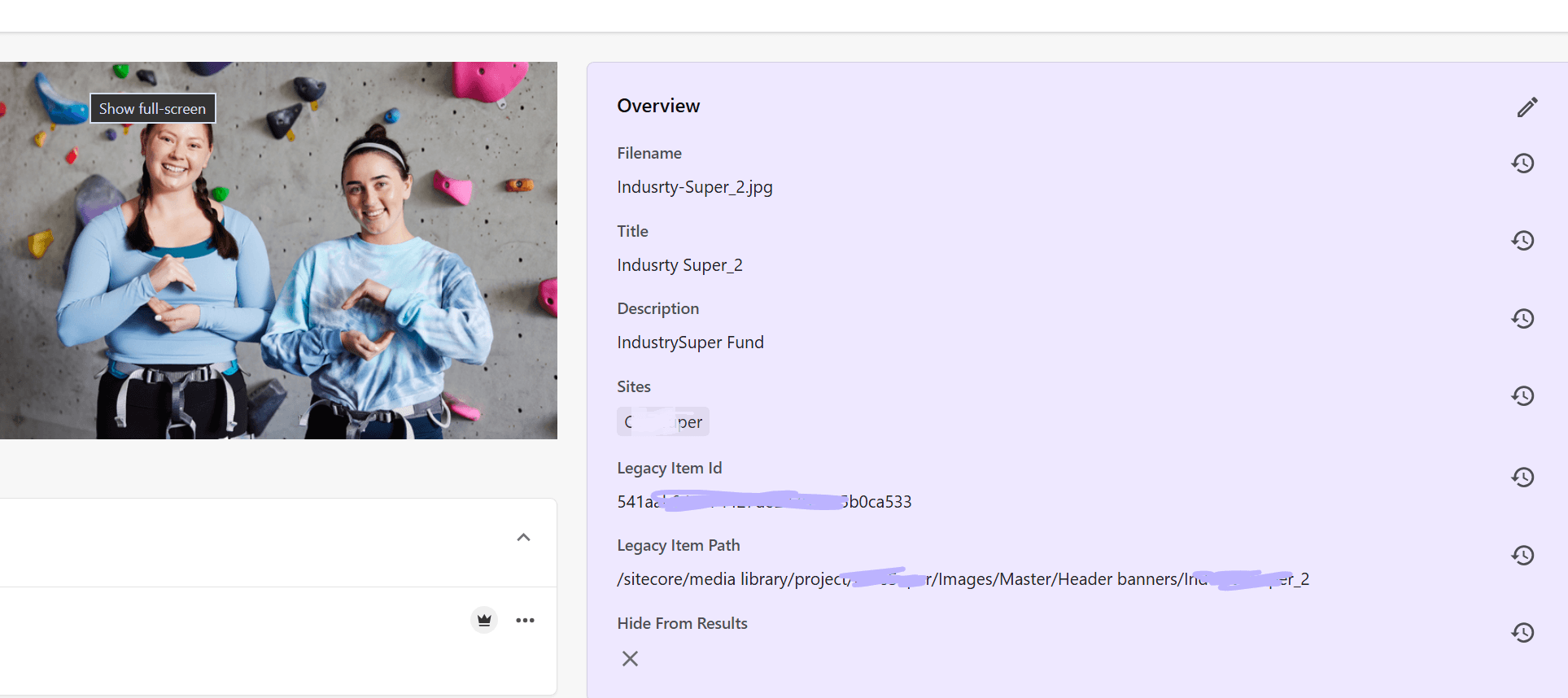
In practice you'll prefix them with your own namespace. We also set the site, lifecycle status and content repository on import.
Why both, and why the ID wins. The ID is the key; the path is a fallback, and something a human can read. Paths aren't unique in a media library that's been around for years. The same icon gets uploaded twice under the same name in the same folder. If you match on paths alone, you'll quietly pick the wrong asset some of the time and never know.
Legacy content refers to media in four different ways, and every one of them reduces to that ID:
| Legacy form | Where it appears | How to get the ID |
|---|---|---|
<image mediaid="{GUID}" /> | Image fields | the mediaid attribute |
<link linktype="media" id="{GUID}" /> | General Link fields | the id attribute |
-/media/<32hex>.ashx | Rich text, HTML snippets | the hex segment |
-/media/<path>.<ext> | Rich text | resolve the path against the legacy snapshot (below), then use that item's ID |
Normalise every reference the same way (strip braces and dashes, lowercase) and re-pointing media becomes a dictionary lookup.
We apply the same principle to pages: migrated pages keep their legacy item IDs. Internal links resolve without re-mapping, and re-running an import updates the same item instead of creating a duplicate.
Step 1: Build the DAM import from Sitecore itself
Content Hub can import assets from a spreadsheet and fetch each file from a URL. So the first job is an M.Asset import workbook built from the legacy media library.
We wrote a Sitecore PowerShell Extensions (SPE) script that runs in the ISE on the legacy CM. It reads master only, walks the media library and writes one row per media item: title, public file URL, alt text as the description, the legacy ID and path, and constants for lifecycle, repository and site.
Things that caught us out, or nearly did:
- The file URL must be public. The DAM fetches each file itself, so it can't reach a local CM. Our local legacy instance runs on a copy of production, so the script builds each media URL the way the public site serves it and swaps in the production host.
- Finish with a review list, not just a file. The script ends by listing what a person needs to decide: media items with no file, items with no version in the target language, and different items that produce the same public URL. That last case creates two assets from one file with different legacy IDs, so fix it before you import.
Step 2: Round-trip, and keep the result in the repo
Once the assets are imported, generate public links for them: the original file, plus a thumbnail where one applies. The headless front end renders DAM assets from these URLs.
Then do the step most teams skip: export everything back out of the DAM and keep the exports in your repository (or within your migration space somewhere).
The export (assets plus public links) has both halves of the mapping in one place: each asset's new identity and the legacy ID it came from. A small local script turns it into a single CSV keyed by legacy ID:
LegacyItemId, LegacyItemPath, AssetEntityId, AssetIdentifier, FileName, Title,
AltText, OriginalUrl, ThumbnailUrl, ThumbnailSrcAttr, ...
Real data is messy, so write the selection rules down and make them repeatable:
- Duplicate uploads of the same legacy item: prefer the asset with an original-file link, then the most recently modified one. Log the others.
- Several active links for one rendition (re-runs of link generation leave these behind): keep the newest, so the map is stable between runs.
- Failed, pending or disabled links are ignored.
Then measure coverage against the content you're migrating: how many media references resolve to an asset, and why the rest don't. Ours fell into clear groups: data files that were never really media, IDs pointing at media deleted long ago, and a few real files that were unpublished on production when the DAM tried to fetch them. Each group gets a decision.
Finally, check the map against content people have authored. Our new site's page branches already had DAM images picked by hand through the Content Hub connector. Comparing those values with the map confirmed the exact format to write, including attributes we'd otherwise have guessed:
<image src="https://<content-hub-host>/api/public/content/<public-link>?v=<version>"
       dam-id="<asset identifier>"
       thumbnailsrc="https://<content-hub-host>/api/gateway/<asset id>/thumbnail"
       dam-content-type="Image" width="1006" height="280" />
The result: media lookups during the migration are a CSV lookup. They're offline, quick and the same every time, with no runtime dependency on the DAM.
Pain point: production doesn't stand still
Building the migration takes time so we do it all with an initial cut of the production data but then we eventually need a content freeze in production and we refreshed our local legacy database from a new production backup. New media had appeared, and files and alt text had changed. Re-running the full export would have created duplicates, so we built a delta step. It compares the previous snapshot, the current snapshot and the latest DAM export, matching on legacy ID, and sorts each item into one of these:
- CREATE: new media with no asset yet
- UPDATE: title or alt text changed. It's a three-way merge, so edits made in the DAM survive unless the legacy value changed too.
- UPDATE-FILE: the file changed, detected from size, extension, MIME type and dimensions
- REVIEW: anything whose public URL fails, or serves a different file than the legacy site has
The REVIEW check found problems we'd never have spotted by eye:
- Our CDN challenged requests from the default PowerShell user agent.
- Unpublished media quietly redirected to a "not found" page instead of returning an error.
- The CDN's image optimisation recompressed images, so we had to read the original size from a response header.
- Sitecore media URLs ignore the file extension, so
icon.svgcan serve theicon.pngthat sits beside it.
Lesson: plan for at least one content refresh before go-live, and build the media step so it can run again from the start.
Pain point: one DAM, several environments
Public links are created per environment. Dev, UAT and production each have their own assets and links, so each needs its own export and its own asset map. Decide early whether assets will be imported per environment or synced from one, because it affects every media value the migration writes.
Step 3: Bring the legacy site into the repo as text/YML files.
Sitecore has always been amazing at serialization so leverage that everywhere!
Media is half the problem. The other half is content and presentation: pages, datasources, templates, renderings, layouts, styles and settings.
We took a read-only serialized snapshot of the legacy site and wrote it into a gitignored folder inside the new solution:
- the site's content tree
- media library metadata (without the files)
- forms
- the Feature / Foundation / Project templates and branches
/sitecore/layout, system settings, workflows and languages
A helper script adds a temporary serialization configuration to the legacy CM, runs the snapshot, then removes the configuration. Nothing is committed to the legacy codebase, so the configuration can't accidentally be deployed to production with a later release.
Unicorn, SCS, or something else?
Our legacy solution already used Unicorn, and the legacy CM didn't have Sitecore Management Services installed, so the dotnet sitecore CLI (SCS) couldn't connect. Using the tool that was already there was the quickest route, and it meant installing nothing new on the legacy instance.
That's our situation, not a requirement. Choose whatever suits yours:
- SCS, if the legacy instance already supports it. Add a migration-only module that writes to a gitignored folder and run
dotnet sitecore ser pull. - Install Management Services on a local copy of the legacy CM so the SCS CLI can connect, then pull with SCS. It takes a little more setup. In return, the legacy snapshot and the new solution's serialized items use the same YAML format, so your scripts (and any AI tooling) only need to understand one format, and comparing old with new is simpler.
- A custom export (SPE writing JSON, for example) if neither serializer is available. It takes more work to make complete, but you control the shape.
What matters is the outcome: a complete, read-only, text copy of the legacy site, next to the new solution, that you can refresh whenever you need to.
Why text/YML serialized files beats a live CM
- Searchable. Find every page using a rendering, every datasource with a given value, or every reference to a media ID, in seconds, with
grep. - Safe. Scripts read files. They never need credentials for the legacy CM, and they can't change it.
- Repeatable. Rebuild every page plan from the same input, as often as you like.
- Comparable. Take a new snapshot after a production refresh, compare the two, and you know exactly which pages and media changed. That comparison is what drove our media delta.
- Side by side with the target. The legacy items sit next to the new solution's serialized templates, branches and renderings. You can read "how it was" and "how it needs to be" with the same tools.
That last point matters even more once an AI agent is involved, which is where Part 3 picks up.
Pain points with snapshots
- Items stored as resources. Recent Sitecore versions keep stock items (such as parts of
/sitecore/system) in resource files, not the database. Make sure your snapshot includes what your rules need. - Snapshots are per machine. They're gitignored (they're large and they're content), so every developer takes their own. Write down how to set up a machine from scratch if you're intending to have multiple people work on the data migration.
- Local legacy instances are fragile. Running an old XP version beside a modern Docker-based SitecoreAI setup brings port clashes, memory pressure on SQL and certificate issues. Expect to spend a time on it. We simply moved the legacy site over to port 8443 instead of 443 and life was good.
Checklist
Before you migrate pages:
- Custom legacy ID (and path) properties on DAM assets
- A media export that fills them in, with public file URLs and a review list
- Assets imported and public links generated
- DAM exports committed to the repo, and a legacy-ID → asset map built from them
- Media coverage measured, and the gaps grouped and decided on
- DAM field format confirmed against values the connector actually wrote
- A delta process for content refreshes
- A read-only serialized snapshot of the legacy site in the repo (Unicorn, SCS or custom)
- A documented way to refresh the snapshot and to set up a new machine
Next: Part 3, Migrating with an AI Pair. With the data in place, we'll look at how we give an AI coding agent the context to plan and build several hundred pages reliably, and how we keep it from breaking pages we've already signed off.
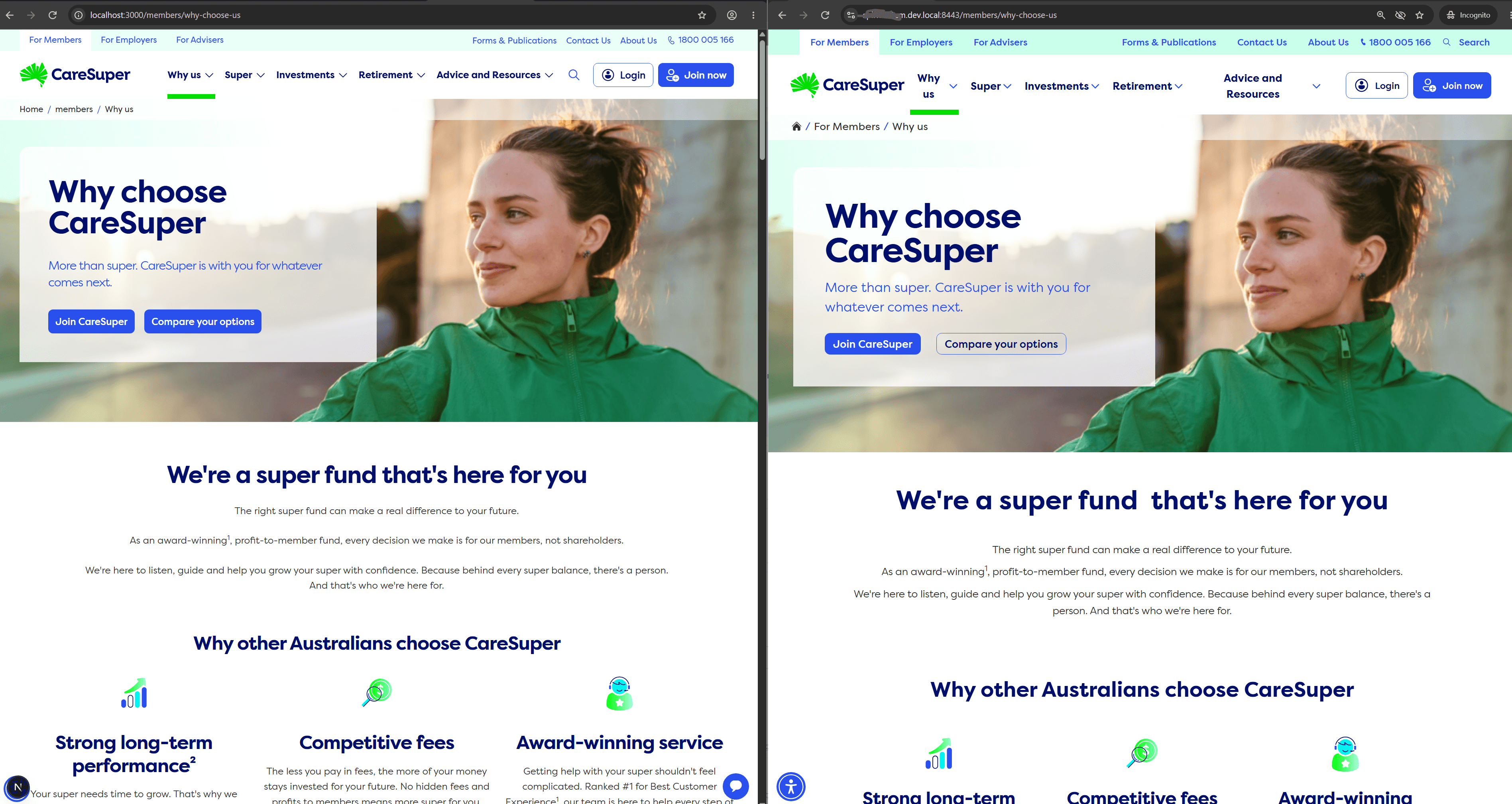
For a taste of what this groundwork makes possible once the AI approach from Part 3 is added, here's a migrated page next to its original. On the left is the new SitecoreAI build, running on the new component library. On the right is the legacy site. The content, structure and look all carried across, and none of it was rebuilt by hand.